
Steps to Disable Your VPN Connection
Before we delve into the steps, it’s important to understand why you might want to disable your VPN. While VPNs provide enhanced security and privacy, there are scenarios where turning them off is beneficial:
Some websites or services may restrict access when they detect a VPN, so turning it off allows you to access these sites. For instance, regional streaming services often block VPNs to enforce geographic restrictions, meaning you might miss out on local shows or sports events. Disabling your VPN temporarily can help you bypass these restrictions legally and enjoy content meant for your region.
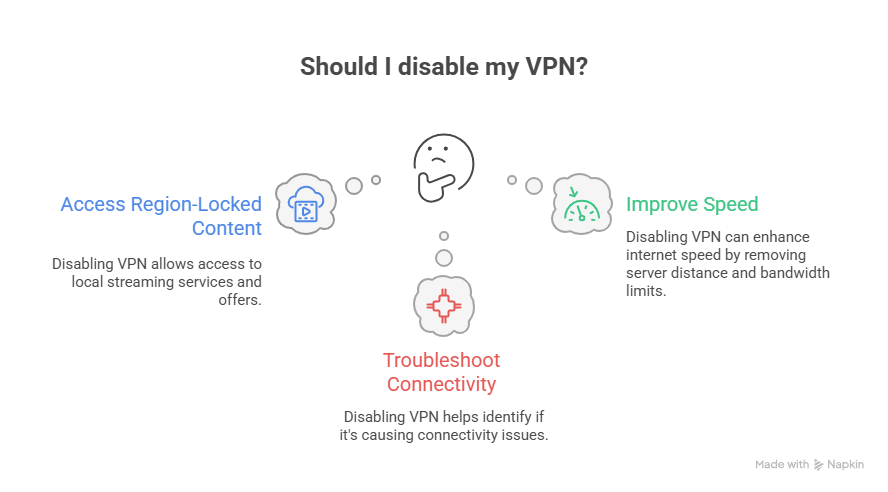
Additionally, certain online platforms might offer promotions or discounts specific to your locale, which can be inaccessible when connected to a VPN. By turning off your VPN, you ensure that you receive the most relevant offers based on your actual location.
Disabling your VPN can help determine if it’s the cause of connectivity problems. For example, if you’re experiencing frequent disconnections or slow loading times, turning off the VPN can pinpoint whether the VPN is the culprit. Often, VPN servers might be overloaded or experiencing downtime, and disconnecting can restore your usual browsing speed.
Network configurations can sometimes conflict with VPN settings, causing unexpected errors. By disabling the VPN, you can test your standard network setup and resolve issues without the added complexity of VPN configurations.
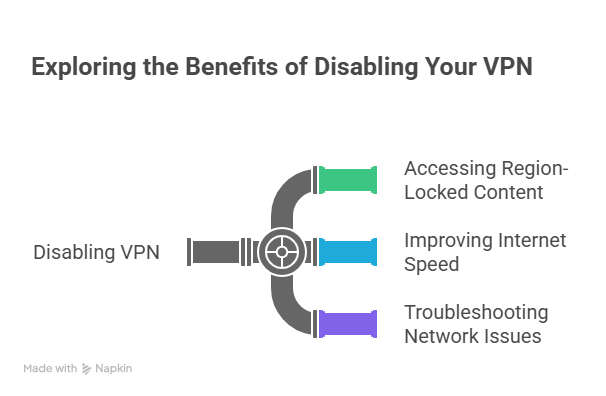
VPNs can sometimes slow down your internet speed, and turning it off might improve performance. This is particularly noticeable if you’re connected to a server that’s geographically distant, as data takes longer to travel. By disconnecting, you allow data to take the most direct route, enhancing your browsing experience.
Moreover, certain VPNs might limit bandwidth during peak times or impose data caps, affecting speed. Disabling the VPN can lift these restrictions, providing a smoother and faster internet connection.
Below, we break down how to disable your VPN on various platforms, including iPhone, Android, Mac, and Windows.
Summary
This guide explains when and why to temporarily disable your VPN—accessing region-locked content or local offers, troubleshooting connectivity issues, and improving speed. It provides step-by-step instructions for iPhone, Android, Mac, and Windows through system settings or within the VPN app, with tips to prevent auto-reconnect. A troubleshooting section addresses connectivity and performance after disconnecting, and the conclusion reminds you to balance privacy with practical use.
Disabling a VPN on an iPhone is straightforward. Follow these steps:
- Open Settings: Tap the Settings app on your iPhone’s home screen. This app is usually represented by a gear icon and is your gateway to all iPhone configurations.
- Select VPN: Scroll down and tap “VPN.” This section lists all VPN configurations installed on your device, including inactive ones.
- Toggle Off: You’ll see a toggle switch. Slide it to the “off” position to disconnect the VPN. The switch will change color, indicating the VPN is no longer active.
- Open the VPN App: Launch the VPN application you’re using. These apps often have distinct icons and can be found in your app library.
- Disconnect: Look for an option to disconnect or turn off the VPN within the app interface. This is usually a prominent button for easy access.
Some VPN apps offer widgets or shortcuts for quick toggling. Consider adding these to your Control Center for faster access. Also, remember that some apps may automatically reconnect your VPN, so ensure your settings are adjusted accordingly.
Disabling a VPN on Android devices is just as easy. Here’s how:
- Open Settings: Access the Settings menu on your Android device. This can usually be done by swiping down the notification panel and tapping the gear icon.
- Connections: Tap on “Connections” or “Network & Internet,” depending on your device model. This section manages your wireless and network connections.
- VPN: Find and tap the “VPN” option. Here, you’ll see a list of all configured VPNs.
- Disconnect: Tap the active VPN connection and select “Disconnect” or “Turn Off.” The status should update to reflect that you’re no longer connected.
- Open the VPN App: Launch the VPN app. These apps often have intuitive user interfaces for managing your connections.
- Turn Off: Use the app’s interface to disconnect the VPN. Look for a button labeled “Disconnect” or a similar option.
Some Android devices allow you to set VPNs to automatically reconnect upon network changes. Review these settings to ensure your VPN stays off when you desire. Also, remember to clear any saved credentials if you want to prevent automatic logins.
Turning off a VPN on a Mac can be done via System Preferences or through the VPN app:
- Open System Preferences: Click the Apple menu and select “System Preferences.” This is your control hub for Mac settings.
- Network: Click on “Network.” This section contains all network-related configurations.
- Select VPN: Choose your active VPN connection from the list on the left. The right pane will display its details.
- Disconnect: Click the “Disconnect” button. The status indicator should show that the VPN is no longer active.
- Launch the VPN App: Open the VPN software you’re using. These apps often reside in the Applications folder or on the Dock.
- Disconnect: Click on the disconnect button within the app. This will immediately sever the VPN connection.
Consider setting your VPN to not launch at startup if you frequently disconnect it. Additionally, some VPN apps integrate with the Mac menu bar for quick access, allowing you to connect or disconnect with a single click.
For Windows users, here’s how to disable your VPN:
- Open Settings: Click the Start menu and select “Settings.” This can also be accessed by pressing Win + I.
- Network & Internet: Navigate to “Network & Internet.” This section manages all network interfaces.
- VPN: Click on “VPN” in the sidebar. This displays all configured VPN connections.
- Select VPN Connection: Choose the VPN connection you want to disable. Its details will appear.
- Disconnect: Click “Disconnect” to turn off the VPN. The status should update to show it’s inactive.
- Open the VPN App: Launch the VPN software. These applications often have a shortcut on the desktop or in the Start menu.
- Disconnect: Use the app’s interface to disconnect. This usually involves clicking a prominently placed button.
Ensure your VPN settings don’t automatically reconnect after disconnection if you prefer manual control. Additionally, review any firewall rules that might be associated with your VPN to prevent conflicts when disconnected.
Even after turning off your VPN, you may encounter issues. Here are some common problems and solutions:
Ensure your Wi-Fi or Ethernet connection is active and functioning. Sometimes, network interfaces may be disabled during VPN use, so re-enable them if necessary. Restarting your router can also help resolve persistent connectivity issues.
Verify that the VPN toggle is off in your device settings. Some apps may have auto-connect features that need to be disabled. Also, check if the VPN is running in the background or through any browser extensions you might have installed.
After disconnecting the VPN, restart your device to refresh network settings. This can clear any lingering configurations that might affect speed. Additionally, check for any updates for your network drivers or operating system, as these can sometimes improve performance.
Disabling a VPN is a simple process, but it’s important to know how to do it on the various devices you use. Whether you’re aiming to access local content, troubleshoot, or speed up your connection, these steps will guide you through the process.
Remember, while VPNs provide great security and privacy benefits, there are times when turning them off makes sense. By following the steps outlined above, you’ll be able to manage your VPN connections efficiently and with ease. Always balance your need for privacy with the practicality of internet use, ensuring you have the best possible online experience.
Frequently asked question on steps to disable vpn connection
Question: When should I consider turning off my VPN?
Short answer: Turn it off when you need access to services that restrict VPN traffic, such as region-locked streaming platforms or local promotions that rely on your real location. Disabling the VPN is also useful for troubleshooting: if you’re experiencing slow speeds, frequent disconnections, or odd network errors, turning it off can help you determine whether the VPN is the cause. VPN servers can be overloaded or far away, adding latency and reducing speed; disconnecting lets traffic take a more direct route.
Question: What’s the quickest way to disable my VPN on iPhone, Android, Mac, and Windows?
Short answer: You can disconnect either through system settings or within your VPN app:
- iPhone: Settings > VPN > toggle Off; or open your VPN app and tap Disconnect.
- Android: Settings > Connections/Network & Internet > VPN > select active VPN > Disconnect; or use the VPN app’s Disconnect button.
- Mac: System Preferences > Network > select your VPN > Disconnect; or open the VPN app and click Disconnect.
- Windows: Settings > Network & Internet > VPN > select your VPN > Disconnect; or open the VPN app and click Disconnect.
Question: How do I stop my VPN from automatically reconnecting?
Short answer: Disable auto-connect in your VPN app and confirm the system toggle is off. On iPhone and Android, review the app’s auto-reconnect options and, if needed, remove saved credentials to prevent automatic logins. On Mac, consider preventing the VPN app from launching at startup. On Windows, verify the VPN client isn’t set to auto-reconnect and review any related firewall rules that might force VPN behavior. Some apps also offer widgets or quick toggles—configure them for manual control only.
Question: Will turning off my VPN improve my internet speed?
Short answer: Often, yes. VPNs can slow connections if the server is far away, overloaded, or if the provider throttles bandwidth or enforces data caps during peak times. Disconnecting lets your data take the most direct route, which can reduce latency and improve throughput. If speed is your primary concern, temporarily turn off the VPN to test performance, then weigh the benefits against the privacy you lose while it’s off.
Question: I turned off my VPN but still have connectivity or speed issues—what should I try next?
Short answer:
- Confirm your Wi‑Fi/Ethernet is enabled and working; re-enable any interfaces that might have been altered during VPN use.
- Make sure the VPN is fully off in system settings and in the app, and check for any VPN-related browser extensions still running.
- Restart your router and your device to refresh network settings.
- Check for operating system and network driver updates, which can resolve lingering performance problems.