How to send encrypted email with office 365
Email security is crucial in today’s digital world. Office 365 offers robust encryption features to protect your communications.
Encrypting emails ensures only intended recipients can read the content. This is vital for safeguarding sensitive information.
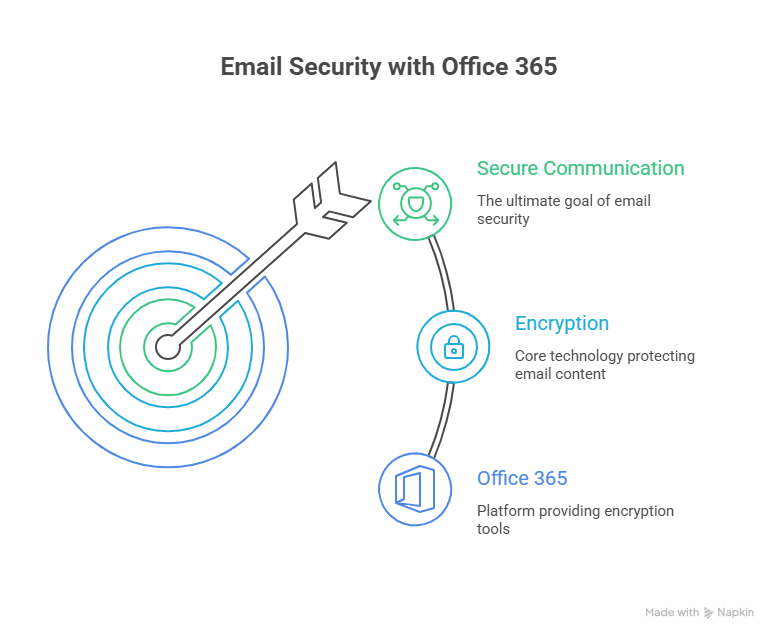
Office 365’s encryption tools are user-friendly and accessible. They integrate seamlessly with other Microsoft services.
This guide will show you how to send encrypted emails using Office 365. You’ll learn step-by-step instructions for Outlook and web apps.
We’ll also cover how recipients can open encrypted emails. Understanding these processes enhances your email security strategy.
By the end, you’ll be equipped to protect your communications effectively. Let’s dive into the world of encrypted email with Office 365.
What Is Email Encryption and Why Use It in Office 365?
Email encryption is a method of converting email content into unreadable code. This ensures that only the intended recipient can access and read the message.
Using encryption in Office 365 helps protect sensitive information from unauthorized access. It is an essential tool for maintaining privacy and confidentiality in communications.
Office 365’s encryption features are beneficial for various reasons, including:
- Protecting sensitive business information.
- Complying with data protection regulations.
- Enhancing trust with clients and partners.
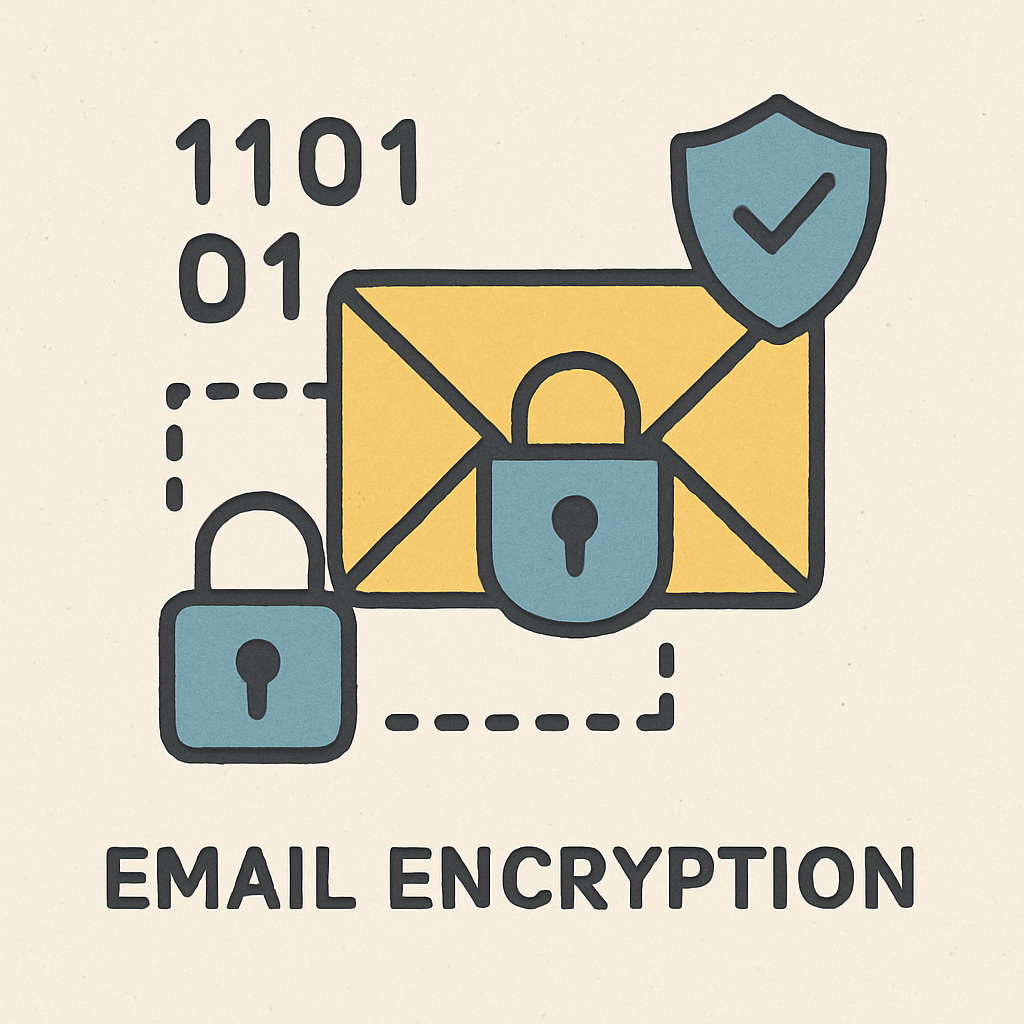
Moreover, encrypted emails can help prevent data leaks and unauthorized disclosures. This can safeguard both personal and professional communications. Encrypted messages ensure that even if intercepted, the information remains secure. Therefore, adopting email encryption in Office 365 is a proactive measure to maintain data security. It’s also a key component of a comprehensive email protection strategy.
Overview of Office 365 Email Encryption Options
Office 365 offers multiple encryption options tailored to various needs. Two primary methods are Office 365 Message Encryption (OME) and S/MIME.
OME is user-friendly and widely used in Office 365. It doesn’t require certificates, making setup simple and efficient. S/MIME requires digital certificates for both sender and recipient. This method offers more control but might be complex for some users.
Here are key features of Office 365 email encryption:
- Easy setup and use with OME.
- Compatibility with other email clients.
- Flexibility in applying encryption.
Additionally, encryption settings can be adjusted for different compliance needs. Users have the ability to encrypt individual emails or create policies for automatic encryption. Customizing these settings in the Security & Compliance Center ensures optimal security. By using these tools, businesses can address diverse security challenges effectively.
How to Encrypt an Email in Outlook (Step-by-Step)
Encrypting an email in Outlook is a straightforward process. This ensures that sensitive information is protected.
Begin by opening a new email message in Outlook. Navigate to the “Options” tab in the toolbar.
From there, locate the “Encrypt” button. Clicking this button activates the encryption features.
Steps to Encrypt an Email:
- Open Outlook and start a new message.
- Click on the “Options” tab.
- Select “Encrypt” from the menu.

Once encryption is enabled, compose your email as usual. Add the recipient’s address, subject line, and message content.
It’s also possible to encrypt attachments within the email. Simply add the files before clicking “Send.”
For more specific needs, you can use mail flow rules in the admin center. This involves setting conditions for automatic encryption.
Creating Mail Flow Rules:
- Access the Office 365 admin center.
- Navigate to “Mail flow” and select “rules.”
- Set conditions for when to apply encryption.
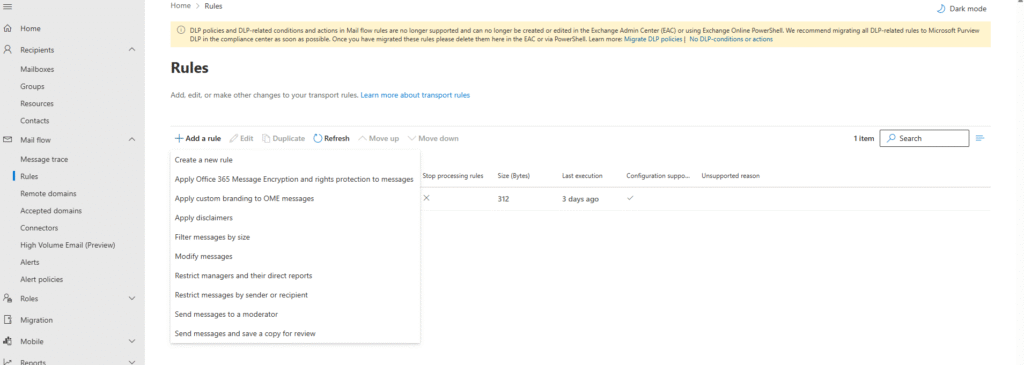
Upon sending the email, recipients receive a secure link to access it. Ensure they know how to open encrypted emails. This completes the encryption process in Outlook. Now, your emails are secure and protected.
How to Send Encrypted Email in Office 365 Web and Mobile Apps
Sending encrypted emails in Office 365’s web and mobile apps is simple. These platforms provide user-friendly encryption options for secure communication.
In the Office 365 web app, start by composing a new email. Look for the “Encrypt” option at the top of the message window.
Tap this option to secure your email. It’s vital to ensure encryption before adding sensitive information.
The mobile app for Office 365 also facilitates encryption easily. After drafting your message, locate and select the “More options” menu.
Steps for Web and Mobile App Encryption:
- Compose a new email.
- Choose “Encrypt” from the options.
- Send the email securely.

Recipients will receive a secured message link. Inform them about how to open encrypted emails. This feature works seamlessly across different devices, enhancing security on-the-go.
How to Encrypt Email Using Subject Line or Rules
Encrypting emails by using specific subject lines or rules is a practical approach in Office 365. This method allows automated encryption for emails containing particular keywords, streamlining the process for users.
To begin, access the Office 365 admin center. From there, navigate to the “Security & Compliance” section. This area enables you to set rules based on keywords or phrases.
Once there, you can create a new rule specifying conditions. These may include keywords in the email’s subject line that trigger encryption automatically. Setting up this rule ensures consistent protection across communications.
Steps to Encrypt Using Rules:
- Visit the “Security & Compliance” section.
- Set up rules targeting specific subject line keywords.
- Enable automatic email encryption.

Using such automated rules ensures that sensitive information remains secured with minimal manual effort. It enhances email security in a highly efficient manner.
How Recipients Open an Encrypted Email
Opening an encrypted email may seem challenging, but Office 365 ensures it is user-friendly. Recipients receive a notification email indicating the message is encrypted. They must follow a few straightforward steps to access the content securely.
Firstly, the recipient clicks the provided link to view the message. This link directs them to a secure platform where they may need to authenticate their identity. Options include signing in with a Microsoft account or using a temporary passcode.
Once authenticated, the recipient can read the encrypted email. It is crucial to instruct recipients about these steps to avoid confusion.
Key Steps for Recipients:
- Click on the secure message link.
- Authenticate using a Microsoft account or passcode.
- Access and read the email content.

Educating recipients on these procedures ensures smooth communication. The security measures maintain high data protection standards while providing access to authorized users.
Can Encrypted Emails Be Forwarded? What Happens Next?
Yes, encrypted emails can be forwarded, but their security features remain intact. The encryption ensures that even if forwarded, the email content is still protected.
When a recipient forwards an encrypted email, the new recipient receives the same secure message notification. They will need to authenticate to read it, just like the original recipient.
This process guarantees that unauthorized individuals cannot access sensitive information. The encryption stays with the message, allowing safe sharing across various platforms.
What to Expect:
- Forwarding maintains encryption.
- New recipients get a secure message link.
- Only authorized users can read the email.
Managing and Customizing Encryption Settings in Office 365
Managing email encryption settings in Office 365 is crucial for maintaining data security. These settings allow businesses to control how emails are protected. Customizing these options helps meet specific organizational security needs.
To begin customizing settings, users should navigate to the Office 365 Security & Compliance Center. Here, administrators can modify encryption policies to fit their requirements. This ensures that sensitive information is always encrypted when necessary.
Some customizable settings include:
- Setting expiration dates for encrypted emails
- Enabling email revocation
- Integrating with other security measures
Regular reviews of encryption policies allow organizations to adapt to changing security landscapes. By fine-tuning these settings, you optimize email protection.

Best Practices for Secure Email Communication in Office 365
Securing email communications in Office 365 involves more than just encryption. Combining encryption with other security practices enhances overall protection. It’s essential to stay informed about potential threats and adapt strategies accordingly.
Always educate users about email security best practices. Awareness among staff helps prevent phishing attacks and data breaches. Encourage regular training sessions to keep everyone updated on the latest security measures.
Key best practices include:
- Regularly updating passwords
- Using multi-factor authentication
- Monitoring for suspicious activities
By following these practices, you bolster your organization’s security posture. This proactive approach helps safeguard valuable data and build trust with clients and partners.
Troubleshooting and FAQs: Common Issues with Encrypted Email
Encountering issues with encrypted emails in Office 365 is not uncommon. Often, these issues stem from user configuration errors or misunderstandings about the process. Addressing them swiftly ensures smooth communication.
One frequent problem involves recipients unable to open encrypted emails. This can usually be resolved by checking they’re using the correct credentials. Make sure the recipient knows how to access the message securely.
Common issues include:
- Error messages when sending encrypted mail
- Recipients unable to decrypt emails
- Problems with encrypted attachments
Office 365’s support resources provide comprehensive solutions. Understanding these common issues and their fixes helps maintain seamless encrypted communications. Stay updated on FAQs to anticipate and prevent future challenges.
Conclusion and Next Steps
Email encryption in Office 365 is a vital tool for protecting sensitive information. By following the steps outlined, users can ensure their emails are secure and compliant with data protection standards.
Moving forward, regularly review your encryption settings and educate your team on maintaining email security. Staying proactive and informed helps protect your communications and support your business goals. Consider exploring more advanced features and integration to enhance your overall cybersecurity strategy.